Find Answers Fastin Our Knowledgebase

Explore our step-by-step guides, tutorials and expert tips to get the most out of your hosting experience. Our Knowledgebase is here for you 24/7, whether you're setting up a domain, managing WordPress, or troubleshooting.

knowledegebase

How to Install Filezilla Client on Windows


Installing the FileZilla FTP Client on Windows OS is easy. Just follow this tutorial.


1. Download the Filezilla FTP Client Installer file for your Windows OS.


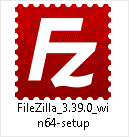
2. Double click to Run the FileZilla FTP Setup File. If it shows a security warning, please read and accept it. Then click on Run.
ftp-filezilla-client-setup-file.gif

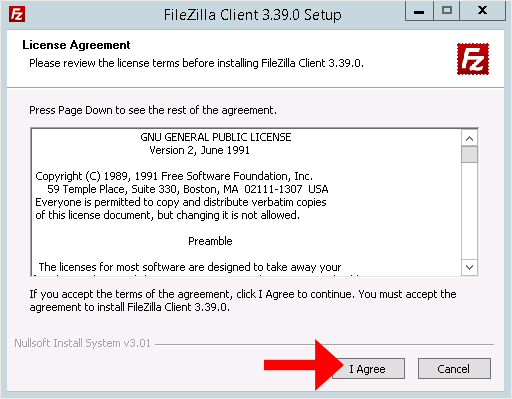
3. The FileZilla Client will show a License Agreement. Please, read it and accept the agreement to install the FileZilla Client on your computer.
ftp-client-filezilla-agreement-license.gif


4. Click on Next until it shows the Install option. Then choose it.

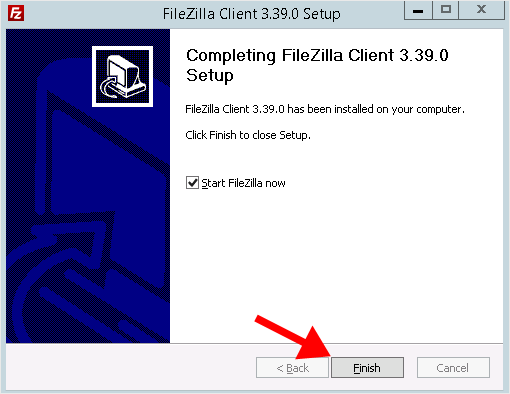
5. The installation usually completes in a few seconds. However, depending on the speed of your computer, it may take a little longer. Once it ends, confirm with Finish.
ftp-filezilla-client-finish-installation.gif

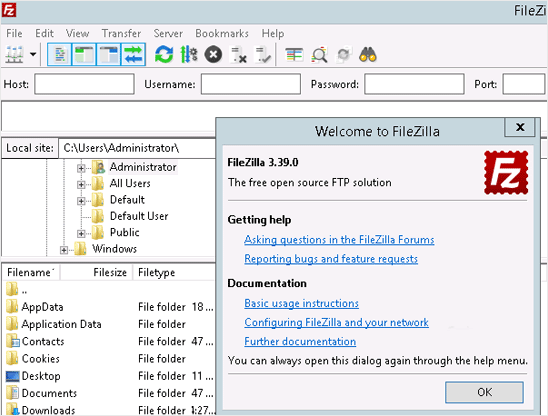
Congratulations. You have successfully installed the FileZilla Client on your Windows operating system. Now you can start using it.
filezilla-client-install-finish.gif


Was this answer helpful?

« Back

Explore Latest News

Explore product announcements, hosting tips, security news, and digital trends to help you grow your online presence. Whether you're a developer, business owner, or startup, our blog keeps you ahead of the curve.

Our Partners

The delivery of secure, high-performance hosting worldwide is our mission, and our partners play a vital role in making it happen.

cloudlinux
cpanel
digicert
immunify360
litespeed
softaclus
tripleace